




Blog overview
Start using SimpledCard immediately?
Check out our packages or contact one of our experts directly!
Did you know that SimpledCard has several useful features? At SimpledCard, we don't sit still. Every day, we work on a great product to better serve our customers. In this blog post, we would like to inform you about existing and new features of SimpledCard.
Change card holder
Within SimpledCard's Card Management System (CMS), Administrators and Master Administrators can change cardholders. For example, when several teachers within a school want to use one card. Or if within a team a team member needs to go out with the payment card. This makes it clear to the finance department who has made which expenditure with the debit card.
Changing the cardholder is very simple:
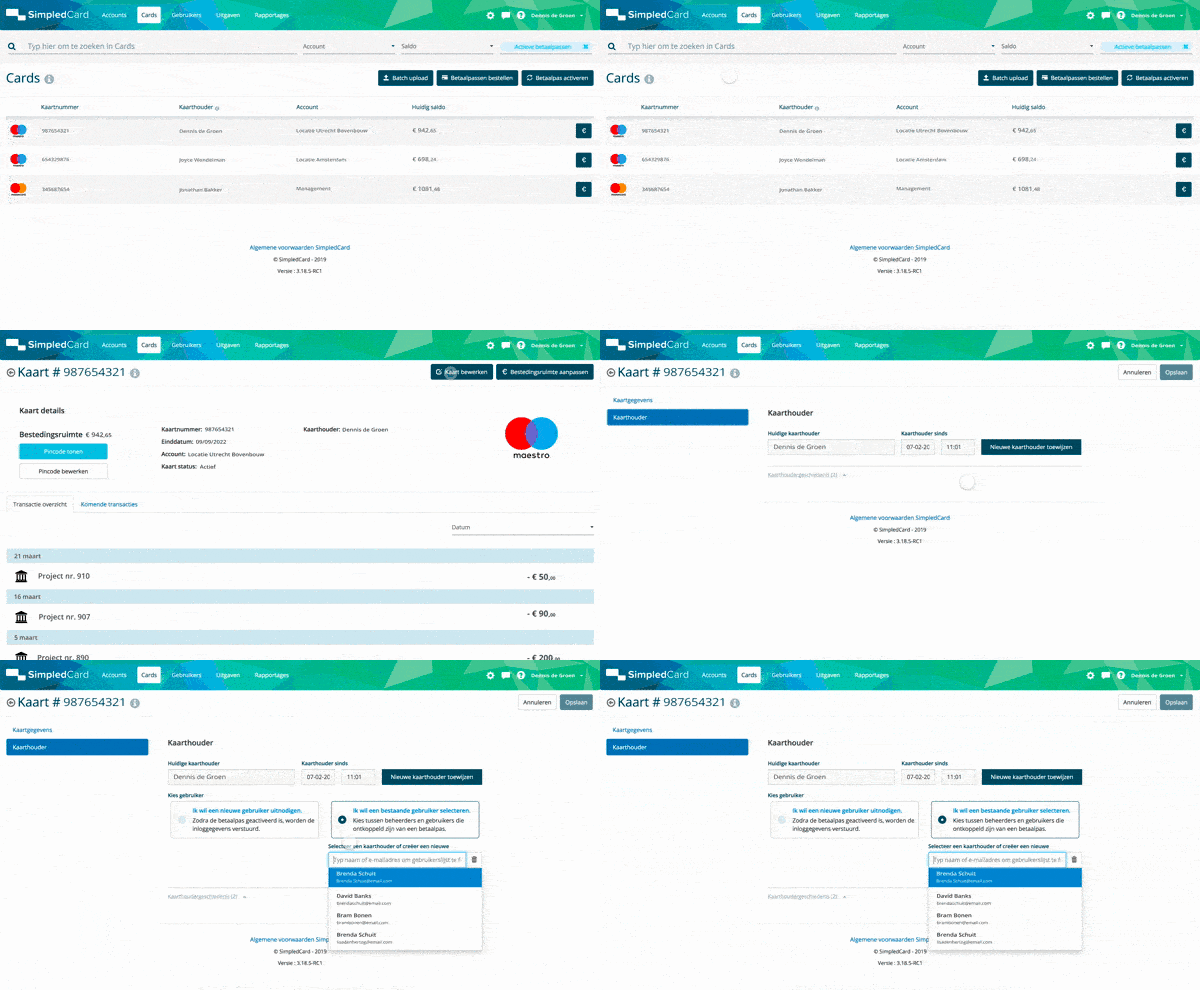
Change cardholder step-by-step plan
1. Go to the Cards tab
2. Click on the debit card
3. Click Edit map
4. Click on Cardholder
5. Click on A new user invite if you want to assign the card to someone who has not used the card before. Otherwise, click on Existing user select and then from a drop down menu you can choose a user who has used the pass before.
6. If you choose a new cardholder, enter the cardholder details
7. Click Save
Automatic PIN change
Note!
When you assign a payment card to another cardholder, the PIN is automatically updated. The new PIN can be found in the web application under card details on the ‘cards’ tab.
The previous cardholder can no longer use the debit card and will not see new transactions.
If you have more questions about our features, please contact our Support Team at support@simpledcard.com
If you are curious about SimpledCard and want to know if the debit cards are also suitable for your organisation, ask an offer to.